Tips and Tricks · July 18, 2026
How to Customise or Disable AI Form Fill Assistance in Your Visa Application Workflow
Learn how to customise or disable AI form fill assistance in your visa application process to maintain full control and accuracy.


Master Your Form Filling AI: Customise, Control, and Conquer
Trying to fill out a visa form only to have your AI assistant guess the wrong details? Frustrating, isn’t it. You want speed, but you also want precision. That’s where Form Filling AI can feel like both a blessing and a curse. In this guide we’ll help you reclaim control of your visa application workflow by showing you how to customise or disable AI form fill assistance step by step.
We’ll cover common pitfalls, settings in the Power Platform Admin Centre, and a smart alternative for future-proof applications. By the end, you’ll feel confident adjusting AI form fills to your needs or switching off the feature altogether. Need a seamless AI-assisted visa workflow? Form Filling AI – AI-Powered UK Innovator Visa Application Assistant to start your journey towards a flawless submission.
Why Tweak or Turn Off AI Form Fill Assistance?
Many of us embrace automation. It cuts time, reduces typos, and handles repetitive bits. But AI-led form fills can raise issues:
- Fields pre-populated with outdated data
- Misinterpretation of local date formats
- Overwriting critical manual inputs
- Hiding sections you really needed to verify
When your visa outcome hinges on accuracy, you can’t let a rogue dropdown trip you up. Either customise those AI suggestions or switch off the feature entirely. Let’s break down both options.
What Is AI Form Fill Assistance?
At its core, AI form fill assistance uses dynamic suggestions to complete fields for you based on existing data. It learns from patterns, previous entries, and common templates. In business apps like Dynamics 365 and Power Platform, it aims to speed up document completion. But visa forms demand nuance. One size rarely fits all.
When to Disable Instead of Customise
Customisation is fine for minor tweaks. Yet there are times you may prefer to disable:
- You handle highly sensitive or bespoke visa forms
- Multiple users need distinct settings per environment
- Language or region settings clash with your local formats
- You need full manual control for regulatory compliance
If any of these sound familiar, switch off that fill assistance. We’ll show you how in the next section.
Step-by-Step: Customising or Disabling AI Form Fill
Most guides stop at “go to features” and leave you stranded. We’ll be thorough. If you have multiple environments, you’ll repeat these steps per environment.
- Sign in to Power Platform Admin Centre
– Head over to https://admin.powerplatform.microsoft.com
– Authenticate with your admin account - Select Your Environment
– Click Environment in the sidebar
– Choose the relevant one; repeat if needed - Open Features Settings
– On the top ribbon, select Settings
– Scroll to Product then pick Features - Find AI Form Fill Assistance
– Look for the heading AI Form Fill Assistance
– If you see a toggle, switch it off to disable
– If you prefer custom inputs, leave it on and adjust your data sources - Save Your Changes
– Scroll down to the bottom
– Hit Save
If you don’t see the toggle, it could be a glitch or a new UI layout. Try clearing your browser cache or switching language settings in your tenant. Some users on non-English tenants find missing options. Switch to English (UK) temporarily and revisit the Features page.
After you’ve toggled the setting, test a form. Make sure fields behave exactly as you expect. If you still see suggestions, clear your browser history and re-authenticate.
Ready for a more specialised solution? Build your Business Plan NOW with our desktop app to prepare precise visa documents offline.
Common Hurdles with AI-Driven Form Fills
Even after disabling, you might spot leftovers:
- Cache-driven suggestions: Browser autofill can mimic AI behaviour
- Third-party add-ins: Extensions may reintroduce auto-populates
- Inconsistent field mapping: Old templates clash with new form schemas
Here’s how to tackle them:
- Clear your browser’s autofill data
- Disable extensions temporarily
- Use fresh form templates from the official source
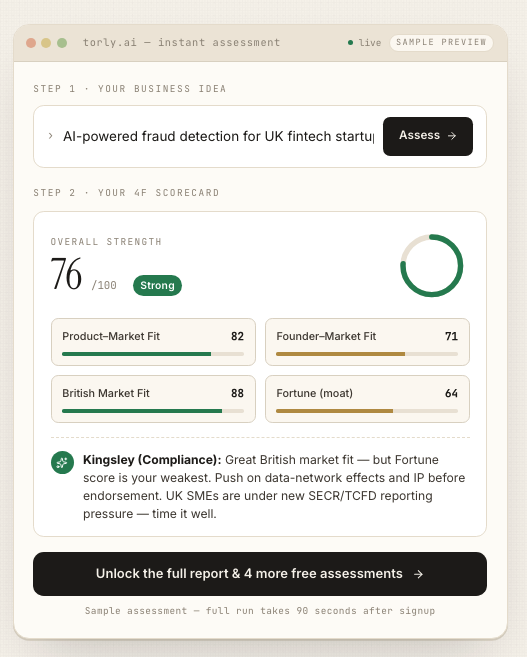
If you automate business documentation beyond forms, consider Torly.ai’s evaluation-driven approach. It assesses your entire visa readiness, from business idea to documentation.
Why Torly.ai Complements or Replaces AI Form Fill
Form-filling tools focus on fields. Torly.ai goes further. It’s an advanced AI agent for Innovator Founder Visa readiness that:
- Checks your business idea against Home Office standards
- Analyses your background for EB endorsement
- Identifies gaps and offers a clear action roadmap
Rather than patching field glitches, Torly.ai ensures your overall application shines. It guides document preparation end to end, so you’re never stuck wondering if you missed a detail.
Core Benefits at a Glance
- 24/7 AI assistance with real-time feedback
- 95% success rate based on historical data
- Tailored business plan aligned with endorsing body criteria
- Rapid turnaround—average 48-hour processing time
By integrating Torly.ai, you reduce reliance on simple form fill AI and avoid manual errors. Plus, it’s cloud-based so you can review your documents on any device.
Halfway through your workflow? Give Torly.ai a spin now. Form Filling AI for UK Innovator Visa Application
Ensuring Compliance and Accuracy
Your visa form isn’t standalone. It’s part of a bigger compliance puzzle. Even if you disable AI form fills, watch out for:
- Document versioning errors
- Missing signatures or incorrect attachments
- Out-of-date business plan sections
A robust platform tracks every change. Torly.ai logs edits, flags missing items, and aligns every document with the latest Home Office guidelines. No more chasing email threads.
Bonus Tips: Streamlined Workflow with AI
- Leverage Templates
Save approved visa templates in a secure folder. Helps avoid field mismatches. - Use Audit Trails
Enable version history. You’ll see who changed what and when. - Automate Reminders
Set alerts for missing documents or expiring certificates. - Collaborate Securely
Use role-based access so only the right people sign off.
These tactics complement your form fill control and bolster your overall visa strategy.
Going Offline: Torly.ai Desktop Support
Prefer a desktop environment? Torly.ai offers a dedicated app for offline business plan building. Perfect when you need to work on a plane or in a location with patchy Wi-Fi.
When your online form tools get in the way, switch to a desktop workflow. TorlyAI Desktop APP gives you the freedom to craft and review business plans without distraction.
Final Thoughts and Next Steps
Controlling or disabling AI form fill assistance brings peace of mind. You decide which fields auto-populated. You catch every critical input. But for a truly holistic visa readiness approach, you need more than toggles and manual overrides.
That’s where Torly.ai steps in. A single platform that merges deep business analysis with immigration compliance. It does the heavy lifting, so you focus on what you do best—building your venture.
Ready to leave form fill headaches behind? Form Filling AI – Streamline Your Innovator Visa Process
With the right tools, you can customise, control, and conquer every part of your visa application workflow. No more guesswork. Just clear, compliant, and confidence-filled submissions. Good luck!